Configuring Connection to Live Platform portal server Azure Private IP
This section describes how to configure the connection to the Live Platform portal server with its private IP address.
|
1.
|
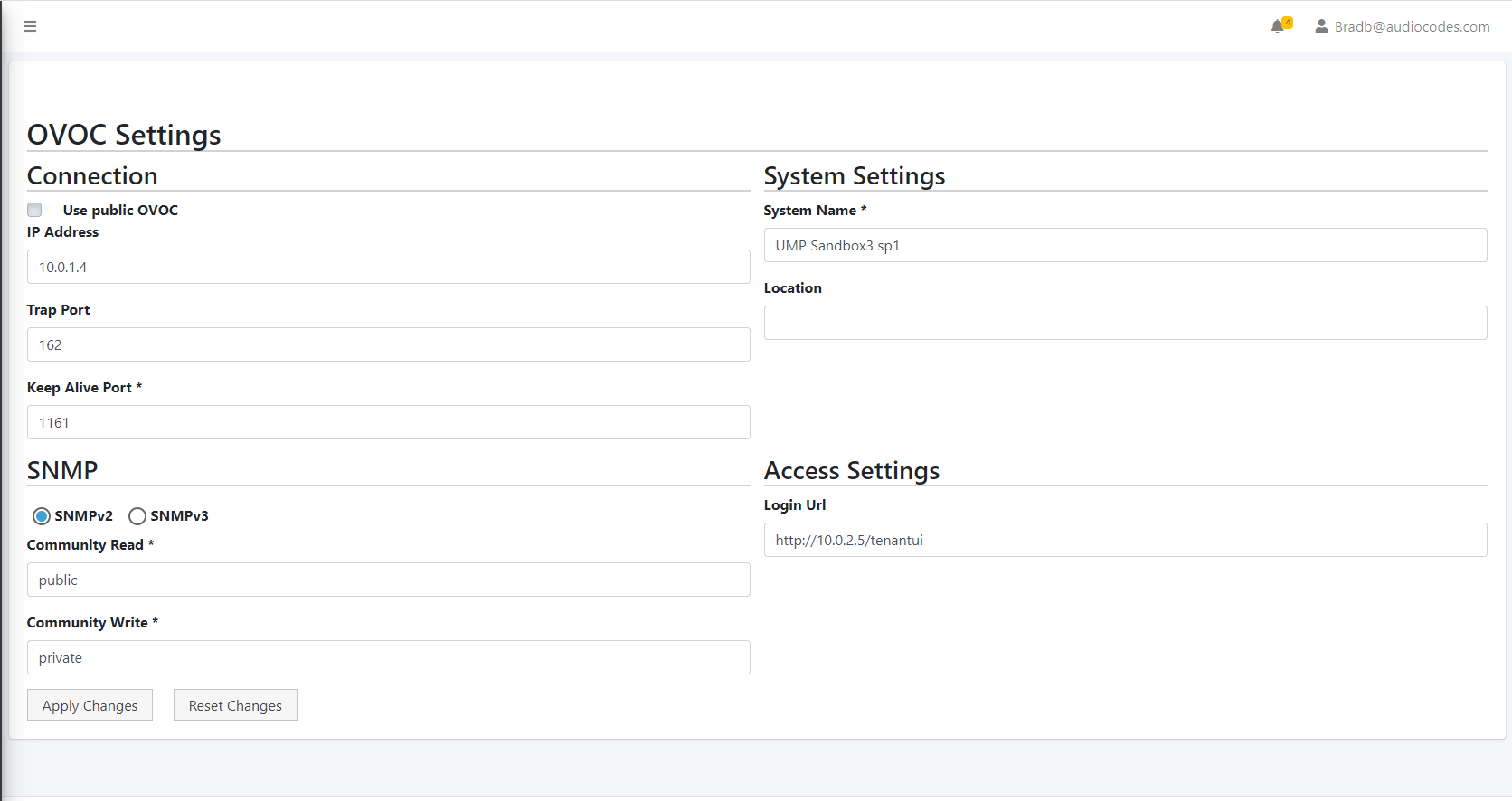
In the Multitenant portal Navigation pane , open the OVOC Settings page (Configuration > OVOC). |
|
2.
|
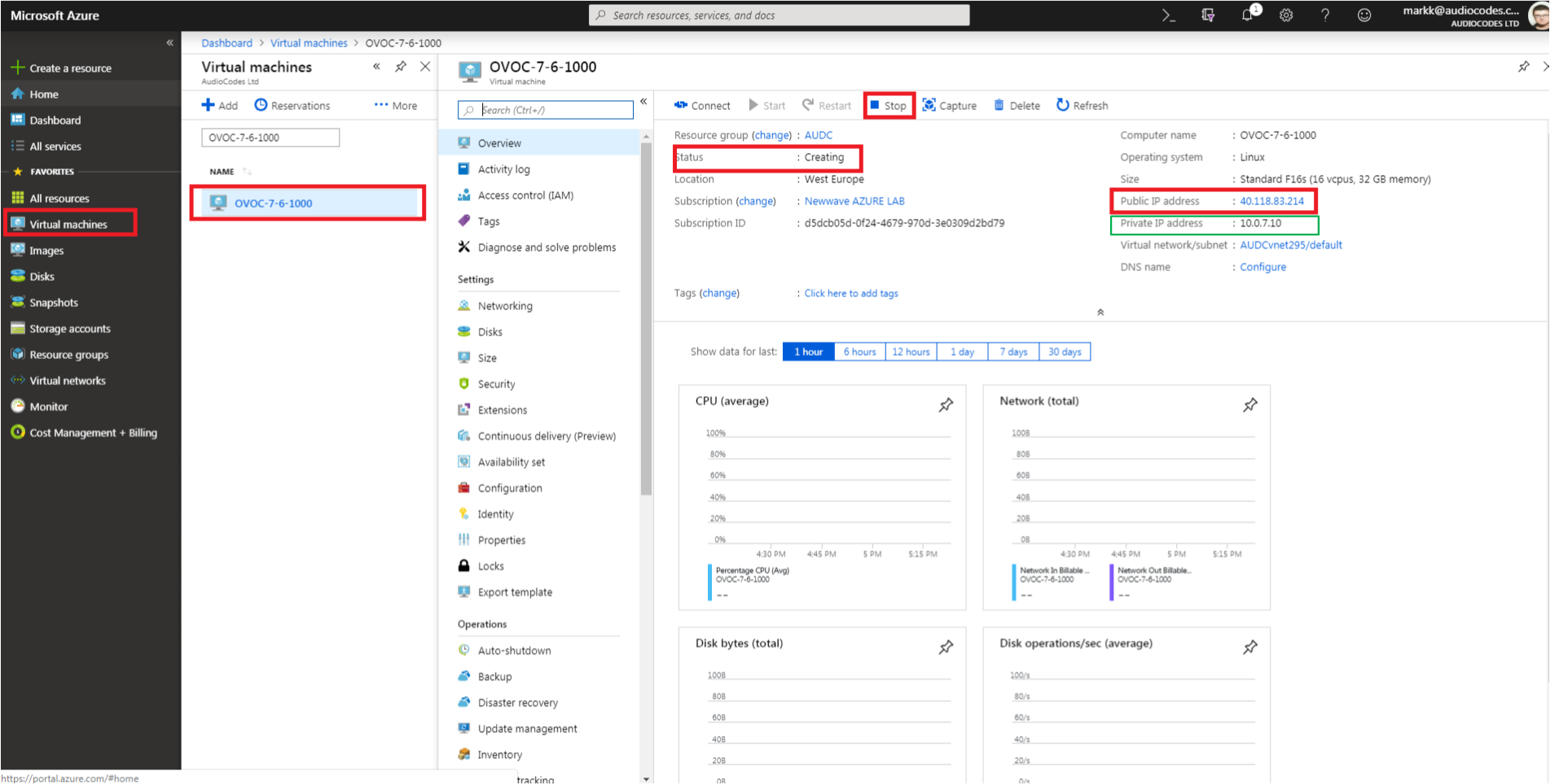
In the IP Address field, enter the Private IP address of the Live Platform portal server Azure server. |
The following figure shows where to extract the IP address of Live Platform portal server on Azure.
|
4.
|
Enter Keep Alive Port: 161 |
|
5.
|
Select SNMPv2 and in the Community Read and Community Write fields enter public. |
|
6.
|
Uncheck the ‘SBC monitor’ flag. |
|
7.
|
Enter the following System Settings: |
|
8.
|
For the Login URL (used for Single Sign-on and REST connection initiated from Live Platform portal server side): Enter the Private IP address of the UMP-365 on Azure and not it's Public IP address/FQDN (e.g. http://127.0.0.1/tenantui). |
Once the initial Single Sign-on connection to the UMP-365 Virtual machine is established, the “Login Url” field above is automatically updated to http://169.254.x.x ; do not change this value.